
• What we do

    full-cycleFull Cycle Developmentstaff-augmentationIT Staff Augmentationai-developmentAI DevelopmententerpriseEnterprise Application Developmenttech-consultingTechnology Consulting
    Service Preview
    full-cycle
    Service preview

    Full Cycle Development

    End-to-end software development from concept to deployment, using cutting-edge technologies and best practices.

    Learn more
  • Blog
    Automate your workflow with Atlassian and Claude CLIClaude Code: Installation & Basic Usage GuideContainerizing Node.js Microservices with Docker & KubernetesTop 15 KPIs That Keep Software Project on TrackHow to Plan Your Software Development Budget
    Company News
    Generalized Singular Value Inequalities for MatricesObada-Prize LaureateWorld of the Year: "Vibe Coding"Estimates of the Numerical Radius Utilizing Various Function PropertiesNew Partnership with HomeStory Rewards Corporation
    Case Studies
    The New Blueprint: AI-Driven Mortgage EngagementOne Hub. Unified Fintech Control.From Static to Addictive: Content Exchange PlatformMeetings, Transformed: Gesture-Led WorkspaceOperations, Synced: End-to-End Live Process Monitoring
    Featured resource
    Featured article

    The New Blueprint: AI-Driven Mortgage Engagement

    Rebuilt outdated systems and UX to boost performance, accelerate feature delivery, and simplify integrations for a leading real estate tech platform.

    Read more
    See all case studies
  • About Us
  • FAQ
Get Started

We deliver advantage beyond features.
What will you ship?

Get Started
  • Full Cycle Development
  • IT Staff Augmentation
  • AI Development
  • Enterprise Application Development
  • Technology Consulting
  • Case Studies
  • Blog
  • Company news
  • About
  • FAQ
  • Contact Us

Follow Us

Site MapTerms of UsePrivacy Policy
© Energmа 2026. All rights reserved.
Železnička 94, 11300 Smederevo, Serbia

Cookie Preferences

We use cookies to enhance your browsing experience, serve personalized content, and analyze our traffic. Choose your preferences below.

Essential Cookies

These cookies are necessary for the website to function properly. It is accepted by default.

Always On

Analytics Cookies

These cookies help us understand how visitors interact with our website by collecting and reporting information anonymously.

Marketing Cookies

These cookies are used to track visitors across websites to display relevant advertisements.

Back to blog
Article thumbnail

Automate your workflow with Atlassian and Claude CLI

In today's world everything is automated. Everything is fast. Everything is AI-driven.

If you're not leveraging the power of AI, you'll soon fall behind.

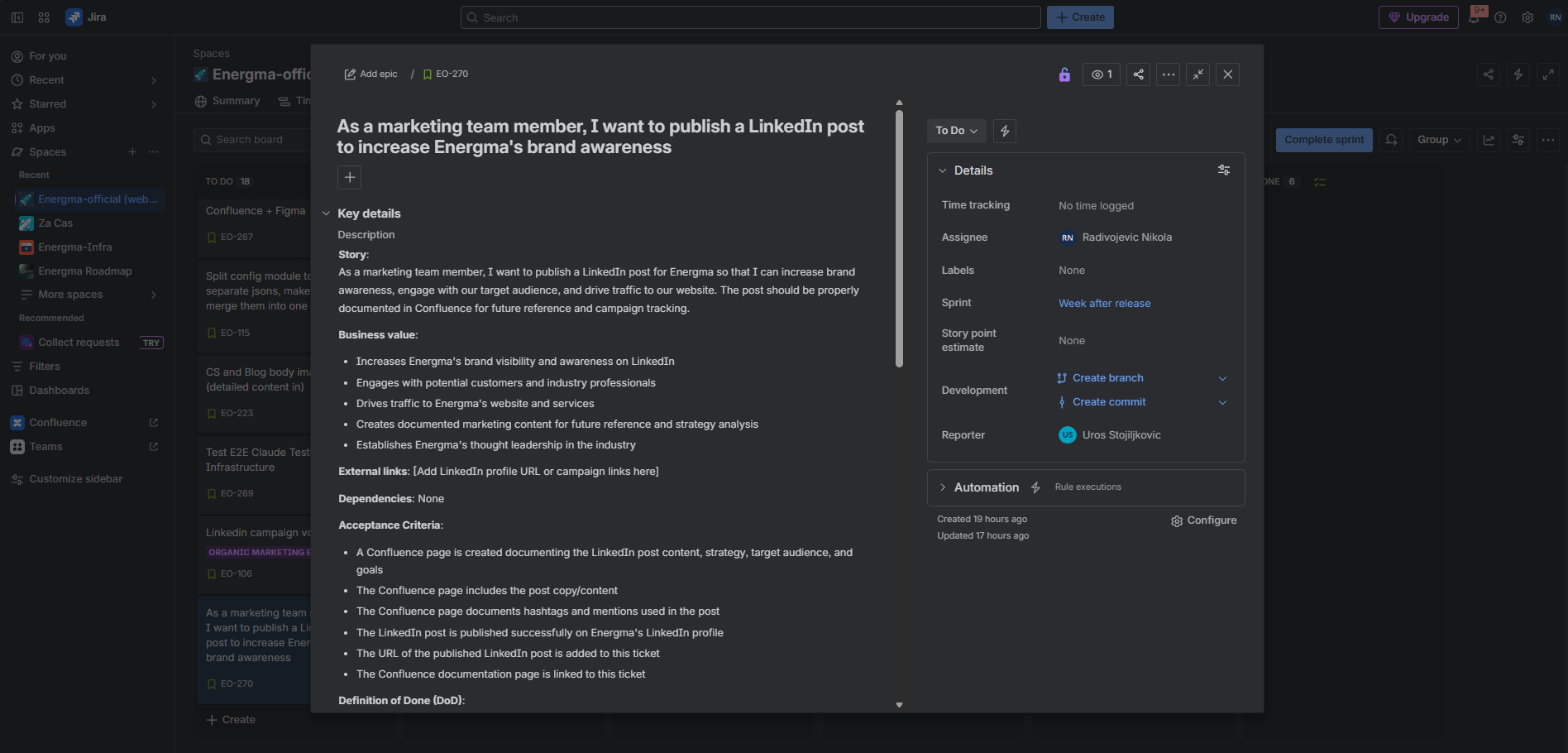
In this short article, I'll show you how developers, managers, and product owners can save serious time when building and managing tickets, documentation, and planning.

So many times in my career, I've created detailed plans for clients - defining architecture, breaking down concepts, structuring execution. After everything gets approved, what happens next?

● We manually create tickets.

● We define scope again.

● We divide work into sprints.

● We repeat everything inside tools.

That part is time-consuming and boring.

But 2025 brings us tools that help us focus on solutions - not repetitive documentation.

Let’s set it up properly.

Quick Summary

  • Connect Claude CLI to Jira and Confluence in minutes using the Atlassian MCP server.
  • A scoped Atlassian API token gives Claude exactly the permissions it needs - nothing more.
  • Environment variables are the secure, recommended way to pass credentials on both Linux/macOS and Windows.
  • Running `claude mcp list` after setup confirms the Atlassian server is active and ready.
  • Authenticating via the /mcp menu inside Claude CLI is the final step before full integration.
  • Once set up, Claude can automate ticket creation, documentation, and sprint planning - saving hours of repetitive manual work.

Step 1: Installing Atlassian MCP for Claude

To connect Claude with Atlassian products like Jira and Confluence, we need to install the Atlassian MCP server.

Run:

1claude mcp add --transport http atlassian https://mcp.atlassian.com/v1/mcp

Or, if you already have a token:

1claude mcp add --transport http atlassian https://mcp.atlassian.com/v1/mcp --header "Authorization: Bearer YOUR_API_TOKEN_HERE"

Step 2: Creating Jira & Confluence API Token

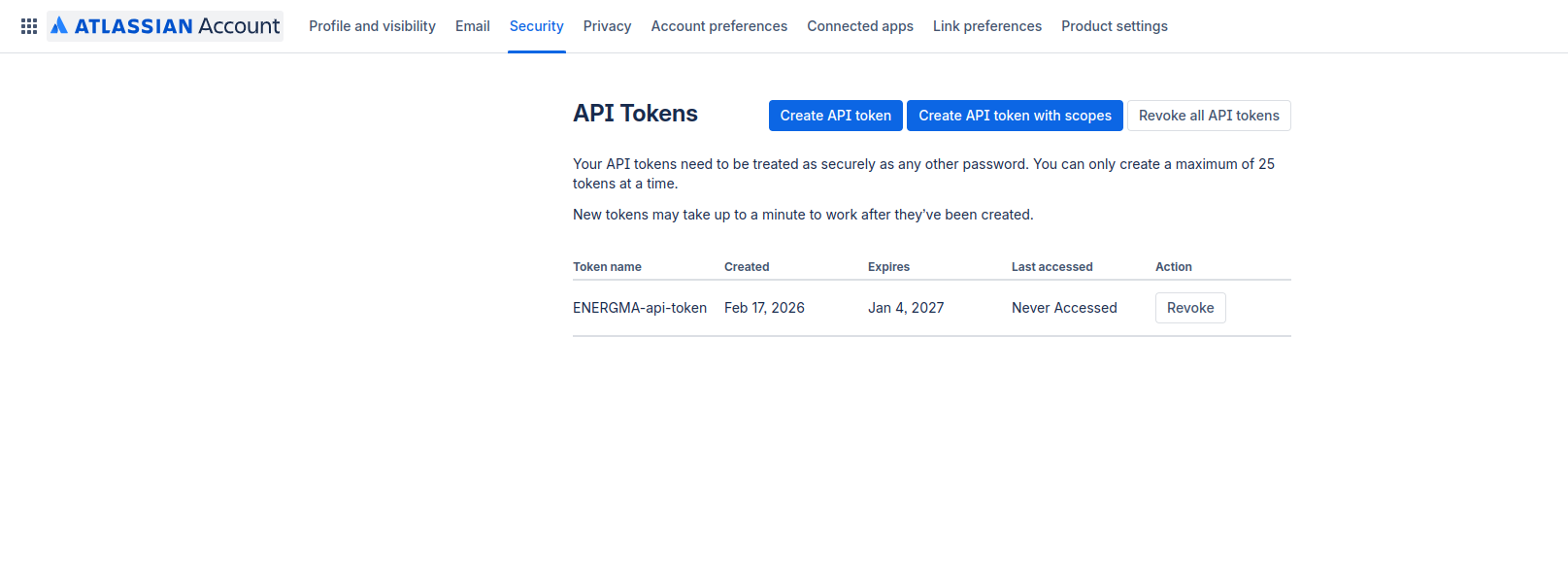
1. Go to: https://id.atlassian.com/manage-profile/security/api-tokens

2. Click Create API token with scopes

3. Give it a meaningful name

4. Choose expiration (1-365 days)

6. Select scopes (define permissions)

7. Click Create

8. Copy and securely store the token - ⚠️ You cannot recover it later

We recommend saving it in a password manager.

Add Confluence and Jira API keys. When you create your API token for workflow automation, you should have something like this:

Blog image

Step 3: Add Credentials via Environment Variables

After generating your Atlassian API token, you need to store it securely as environment variables. The setup depends on your operating system.

Linux / macOS (bash)

1️⃣ Temporary (current terminal session only)

1export ATLASSIAN_API_TOKEN=your_token_here
2export ATLASSIAN_EMAIL=your_email_here

This will work until you close the terminal.

Permanent (recommended)

Add the variables to your shell profile file. If you use bash:

1nano ~/.bash_profile

Add:

1export ATLASSIAN_API_TOKEN=your_token_here
2export ATLASSIAN_EMAIL=your_email_here

Save the file, then reload it:

1source ~/.bash_profile

🪟 Windows GUI

2️⃣ Option 2 - Permanent (Recommended)

1. Open Start

2. Search for Environment Variables

3. Click Edit the system environment variables

4. Click Environment Variables

5. Under User variables, click New

6. Add:

  • Name: ATLASSIAN_API_TOKEN
  • Value: your token

7. Repeat for:

  • Name: ATLASSIAN_EMAIL
  • Value: your email

8. Click OK and restart your terminal

Verify Variables

Linux/macOS

1echo $ATLASSIAN_EMAIL

Windows PowerShell

1echo $env:ATLASSIAN_EMAIL

If you see your value printed, you're ready.

Step 4: Verify MCP Installation

Check installed MCP servers:

1claude mcp list

You should see the Atlassian MCP listed.

Blog image

You should see something like this - and by "like" we mean you need one more step to actually authenticate with Atlassian products.

You have to see a similar message which only differs in the word Connected.

Step 5: Final Authentication Step

1. Open the Claude CLI

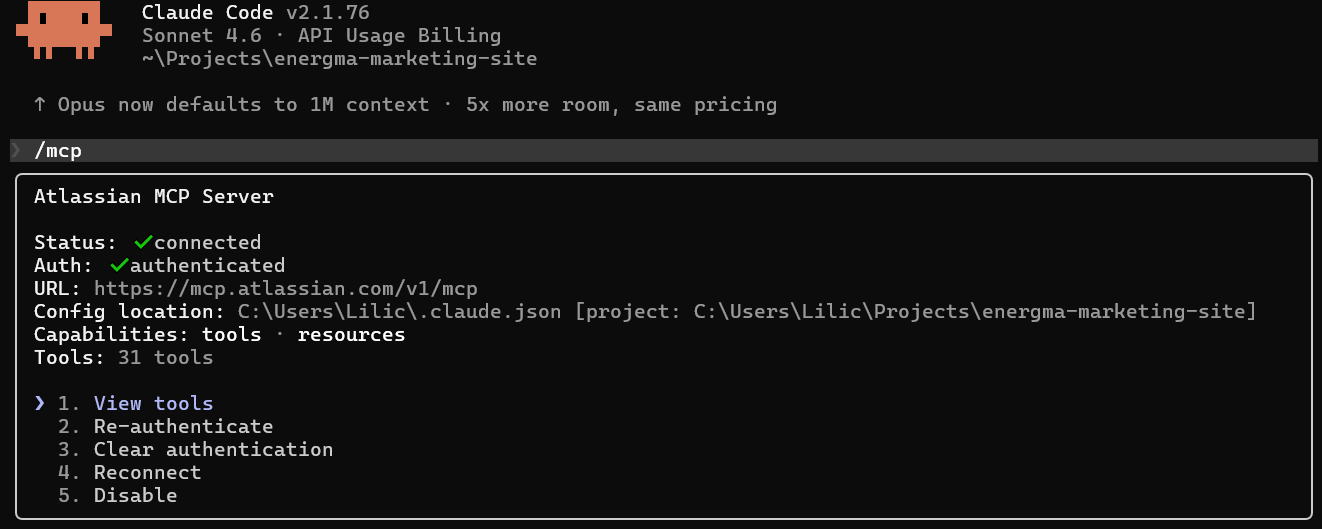
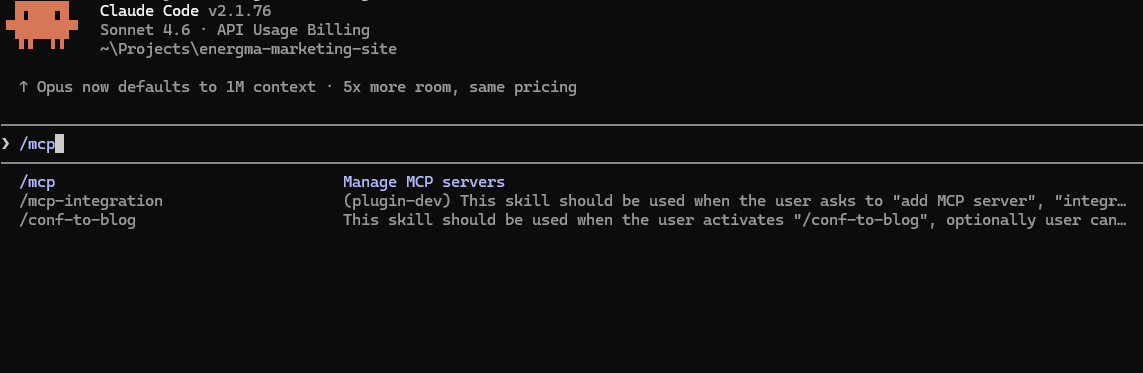
2. Navigate to /mcp

3. You will see all connected MCP servers

4. Select Atlassian

5. Authenticate

Blog image

Then you should see the menu with all connected MCP servers. Select the desired MCP, such as Atlassian, and authenticate. Close and reopen Claude.

Next time you open /mcp, you'll see it fully connected and authenticated.

Blog image

Final Thought

This is just one of the blogs in an incoming series which can help you automate your workflow and focus on problems and solutions instead of tools and usage of them and how creators imagine the feature should work. 🙂

Have a nice day and happy CODING/MANAGING!!!

Blog image

Table of Contents

  • Step 1: Installing Atlassian MCP for Claude
  • Step 2: Creating Jira & Confluence API Token
  • Step 3: Add Credentials via Environment Variables
    • Linux / macOS (bash)
    • 🪟 Windows GUI
    • Verify Variables
  • Step 4: Verify MCP Installation
  • Step 5: Final Authentication Step
  • Final Thought